Video Player
Play survey video alongside the map, geo-linked to the vessel/ROV track so the canvas follows the footage.
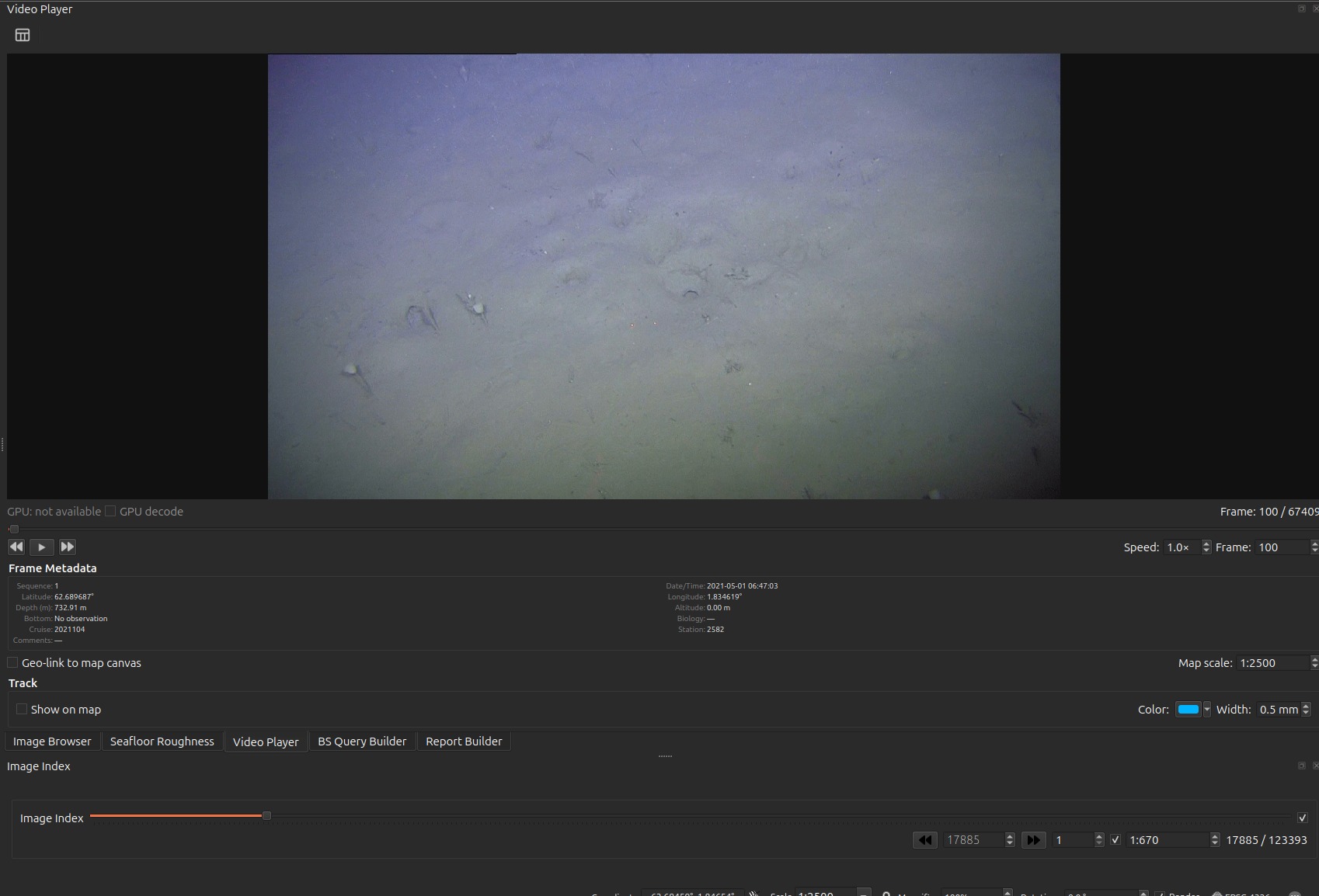
.log: position, depth, cruise and
station, plus the observation fields a reviewer fills in. Geo-link and
Show on map are the two controls that tie playback to the canvas; both
are off here.What it does
- Loads a video file and an associated navigation log, decoding frames with PyAV where available and OpenCV otherwise.
- In geo-link mode, pans the map canvas to the GPS position of the current frame (nearest-position lookup), so the map tracks the video.
- Renders the GPS track as a styled line layer on the canvas for context.
- Hosts a per-frame annotation editor (see Annotation).
How to use
- Set the video file and metadata log in Settings → Video.
- Open the Video Player from the toolbar; use the transport controls to play / pause / seek.
- Toggle geo-link to make the map follow playback; the current position is marked on the track.
Inputs (Settings → Video)
| Setting | What it is |
|---|---|
videofile |
Video file (MP4 / H.264 recommended). |
videometadata |
Cruise-survey navigation CSV — degrees + decimal minutes with N/S/E/W hemisphere codes, converted to signed decimal degrees on load. |
videoannotation |
Optional per-frame bounding-box annotations (frame_index, bboxes, species, confidences). |
Exact column lists for both: Annotations & video.
Two decode backends
PyAV (av) is the preferred backend: unlike OpenCV's FFmpeg path it
deinterlaces interlaced sources, which FFmpeg 7/8 otherwise refuses to
convert. The player falls back to OpenCV when PyAV is unavailable.
The OpenCV dependency is opencv-python-headless on purpose — it avoids
bundling a second copy of Qt that would clash with QGIS's own Qt libraries.