Configuration
Everything GroundTruther needs to know about your data and your services lives
in a single YAML file, config/config.yaml. You normally never edit it by hand —
the Settings dialog writes it for you — but knowing what it is and where it
lives makes every "why can't the plugin see my data?" question answerable.
- Settings reference — all 27 keys: type, default, what each one does, what happens when it is wrong.
- Validation & troubleshooting — how GroundTruther grades the file, which two keys are fatal, and how to read the messages it logs.
Where the file lives
config.yaml sits inside the installed plugin folder, next to the code:
=== "Linux"
=== "macOS"
~/Library/Application Support/QGIS/QGIS4/profiles/default/python/plugins/groundtruther/config/config.yaml
=== "Windows"
If you installed from source with a symlink, that path resolves back into your
checkout — the file is config/config.yaml in the repository.
It is per-install, not per-project
The configuration is not stored in your .qgz QGIS project and does not
travel with it. One QGIS profile has one GroundTruther configuration, shared
by every project you open. Switching survey datasets means changing the
settings (or keeping a second QGIS profile).
The one exception is the roughness Georef calibration, which is saved
per dataset in QgsSettings — see
Seafloor Roughness.
It contains a secret
Processing.grass_api_key is your FastGIS API key (fgk_…). Anyone holding the
file can use your quota and your server-side environments.
config/config.yamlis git-ignored in the repository, so it is never committed. The template that is committed isconfig/config.example.yaml.- Do not paste the file into issues, chats or logs without blanking the key.
- Do not put it on a shared drive that other accounts can read.
Opening the Settings dialog
From the GroundTruther toolbar, click the wizard icon. The dialog reads the current file, shows every key, and writes it back when you press Save settings.
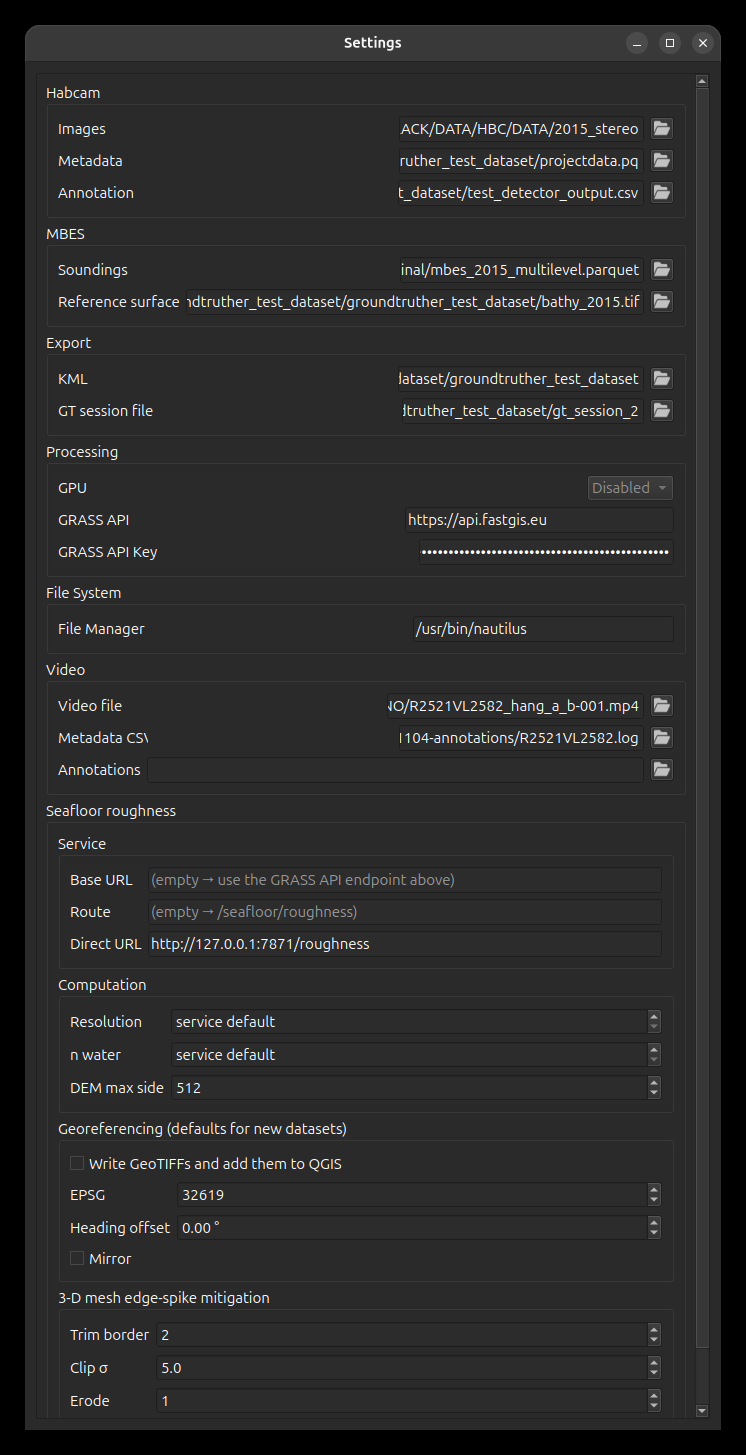
The dialog is grouped the same way the YAML is: Filesystem, HabCam, Mbes, Export, Processing, Video, Seafloor roughness and the GroundTruther session file. Every key in the file has a widget, so nothing has to be hand-edited.
Saving takes effect immediately — the image browser reloads its metadata, the query builder re-reads its data sources, and cloud features re-evaluate whether they are reachable. No plugin restart, no QGIS restart.
Starting from scratch
Copy the shipped template and edit the paths:
Then open Settings and use the … buttons to point each entry at your data.
Only two entries are mandatory: the HabCam image directory and the HabCam
metadata file. Everything else can stay empty — each unset key simply turns
off the one feature that needs it.
How the file is written
The Settings dialog merges its values into the document already on disk; it does not regenerate the file from a template. Two consequences worth knowing:
- A section the dialog does not know about is preserved, not deleted. If a future version adds a section and you save from an older dialog, your section survives.
- Comments are not preserved, but the file's shape is. It is re-serialised
with
yaml.safe_dump, keeping the leading---, four-space indentation and the original key order — so a save through the dialog is not a gratuitous reformat of every line. Any comments you added by hand are still lost, since PyYAML does not round-trip them. Keep notes elsewhere.
Hand-editing the YAML is perfectly fine — GroundTruther re-reads the file every
time the dialog opens and every time the plugin loads. Values are read
defensively: a key that is missing, null, or holds the wrong type degrades to
its default instead of raising.
A worked example
---
Filesystem:
    filemanager: /usr/bin/nautilus
HabCam:
    imagepath: /data/hrs1508/imgs_jpg
    imagemetadata: /data/hrs1508/projectdata.pq
    imageannotation: /data/hrs1508/detector_output.csv
Mbes:
    soundings: /data/hrs1508/mbes_2015_multilevel.parquet
    reference_surface: /data/hrs1508/bathy_2015.tif
Export:
    kmldir: /data/hrs1508/kml_output
Processing:
    gpu_avaibility: false
    grass_api_endpoint: https://api.fastgis.eu
    grass_api_key: fgk_...
Video:
    videofile: /data/hrs1508/dive.mp4
    videometadata: /data/hrs1508/dive_survey.csv
    videoannotation: null
Session:
    groundtruther_project: /data/hrs1508/gt_session.json
Roughness:
    georeference: true
    epsg: 32619
The data those paths point at is described in the Data model section.