GRASS / FastGIS toolbox
The acoustic and terrain analysis in GroundTruther is powered by a remote
GRASS GIS service exposed through the FastGIS GRASS API
(https://api.fastgis.eu). The toolbox lets you connect to it, manage GRASS
environments, set the analysis region, push data in and out, and run any
GRASS module — without installing GRASS locally.
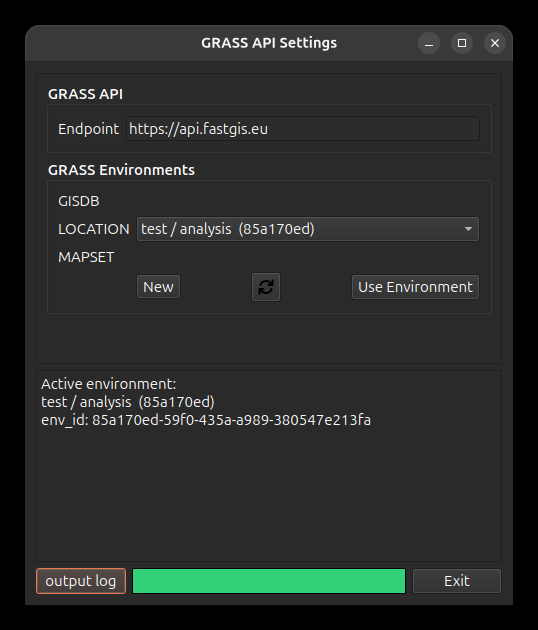
env_id — the handle every subsequent
call is scoped to.Connect
In Settings → Processing, set:
grass_api_endpoint— the API base URL (defaulthttps://api.fastgis.eu).grass_api_key— your API key (fgk_…), sent on every request.
Environments
Every operation runs against an environment — a server-side workspace that binds a GRASS location (a coordinate system) and mapset to your account. In the GRASS settings dialog you can:
- List and select your environments (the active one is what tools act on).
- Create a new environment from an EPSG code or by uploading a georeferenced dataset (whose CRS seeds the new location — the file is also imported as a layer).
- Create mapsets within an environment.
Computational region
GRASS modules honour the current computational region. You can:
- Set the region from a box drawn on the map (coordinates are reprojected to the environment's CRS automatically), or align it to a layer.
- Show/hide the current region on the map with the Region toggle — it outlines the active environment's region without changing it.
Move data in and out
- Import a file into the active environment (raster or vector) from disk.
- Send a loaded QGIS layer to the environment: right-click it in the Layers panel → Send to active GRASS environment (it's reprojected to the environment's CRS on the way).
- Add GRASS rasters to QGIS from the layer table (button or right-click) — fetched as GeoTIFF and added to your project.
Run GRASS modules
GroundTruther builds a module dialog on the fly from the module's own interface description — so virtually any non-blacklisted GRASS module is usable, not just a hard-coded few.
- Pick a module: type into the module search box and choose from the autocomplete over the full GRASS catalogue; the form is built from its schema.
- Quick presets: buttons for common seafloor modules
(
r.geomorphon,r.param.scale, …). - Run asynchronously: modules run on the server with live progress and a Cancel option, so the UI stays responsive on large DEMs.
- Outputs return to QGIS: rasters created by a run are pulled back and added to your project automatically; stdout/stderr appear in the output panel.
How it works under the hood
The plugin talks to an environment-scoped, authenticated REST API; module UIs are generated from each module's interface description, runs are queued as background tasks, and results are retrieved as GeoTIFFs. See the Architecture page for the data-flow diagram.
Settings summary
| Setting (Processing) | What it is |
|---|---|
grass_api_endpoint |
FastGIS API base URL. |
grass_api_key |
API key sent as X-API-Key. |
gpu_avaibility |
Whether a CUDA GPU is available for spatial selection acceleration. (Spelled exactly like that in the file.) |
Full descriptions, defaults and failure modes: settings reference → Processing.
The roughness service reuses these credentials
Seafloor Roughness sends its requests to the same FastGIS endpoint with the same API key, so configuring the toolbox configures roughness too.